Deep dive · Knowledge Base
Inside the Knowledge Base
Open one enriched screen and the Knowledge Base becomes more than an inventory. It connects what the user sees, what the code does, and what other parts of the project it depends on.
Read an element in context
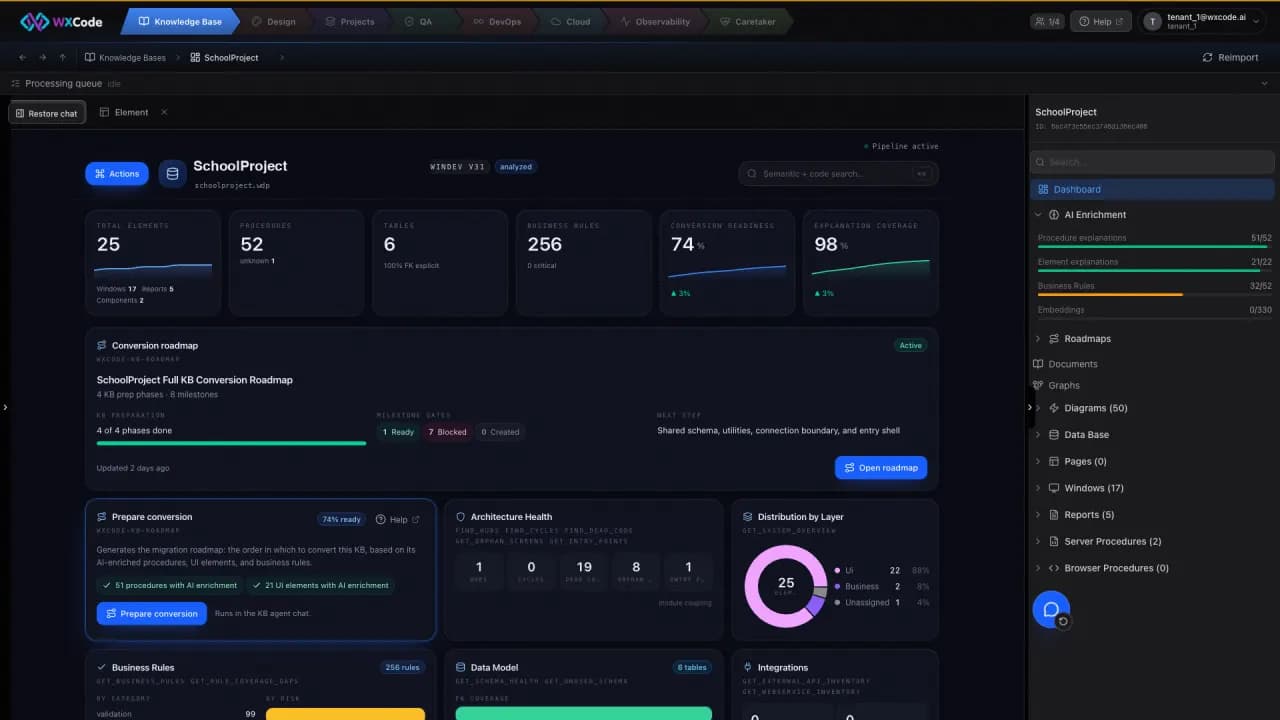
The AI Enrichment view explains a screen's purpose, key logic, user path, tables, dependencies, and conversion notes. Business Rules cards give each rule a business description, condition, action, confidence, and source. Rules from a field event can sit beside rules from local procedures.
Preserve structure as well as behavior
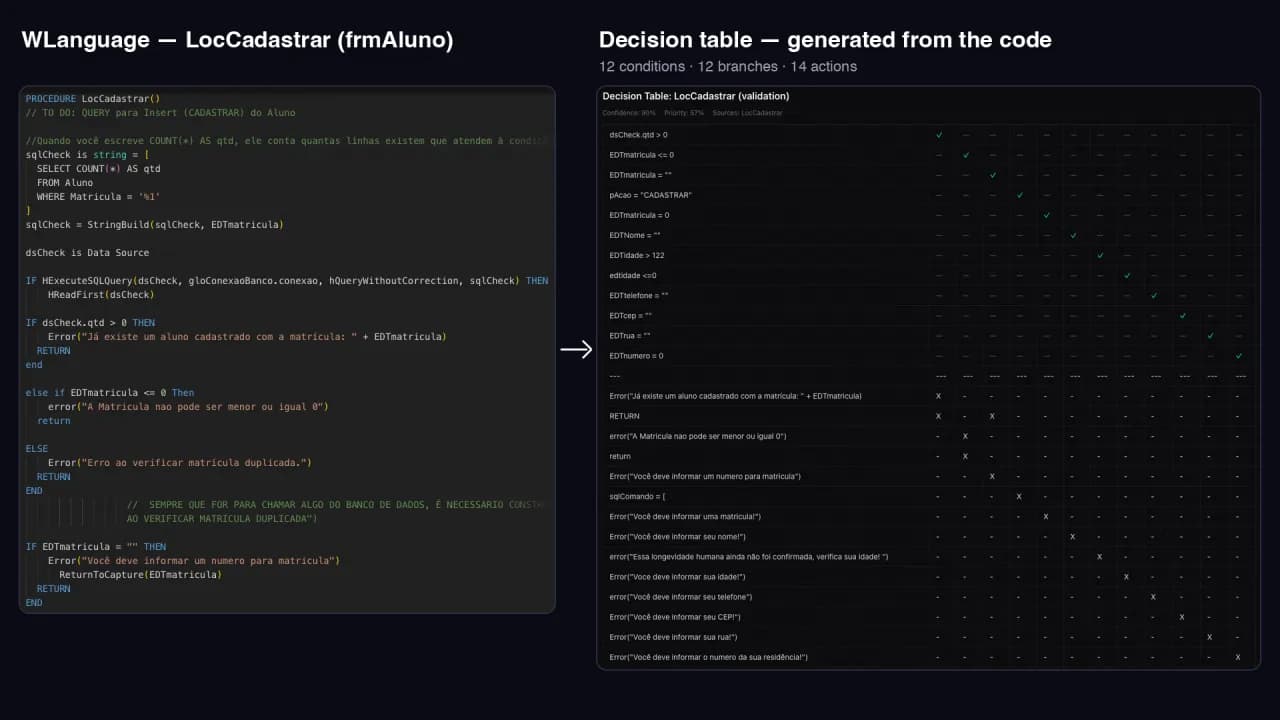
The Code view retains imported controls and event code. Wireframe redraws control positions and sizes, including WinDev planes, as a structural reference. Diagrams express relationships and decisions: ER models, sequences, state transitions, flowcharts, and decision tables.
- Use a wireframe to understand familiar screen layout.
- Use a decision table to review validation cases.
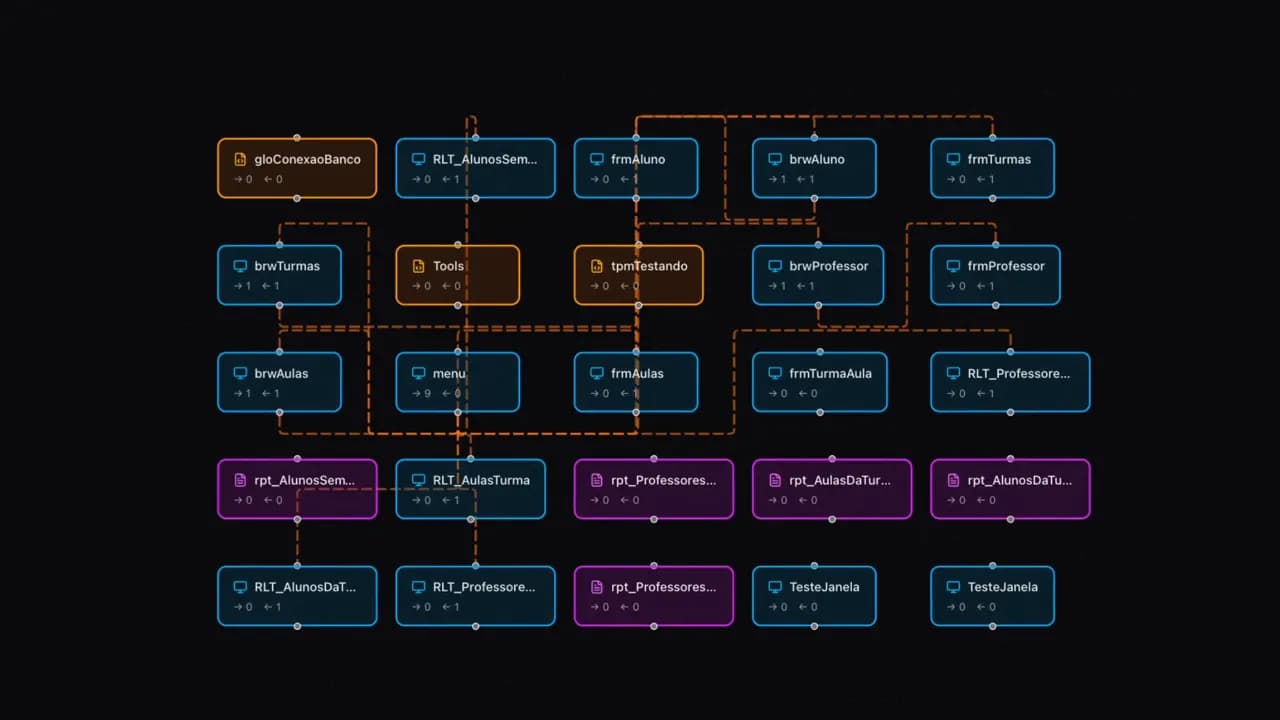
- Use the graph to trace calls, navigation, and data use.
Ask focused questions
Knowledge Base actions use the same evidence to study the impact of a change, document architecture, audit risk, trace a user journey, consolidate rules, and prepare a roadmap. Use the result alongside the source and the people who know the business.